
طريقة الاستخدامHow to use
كيف تستخدم أوراقي.How to use Awraqi.
أولًا البداية في أربع خطوات. ثم كل زر في التطبيق بالأرقام: اختر شاشة، واضغط رقمًا لترى ماذا يفعل. الصور من حساب تجريبي بأسماء مثال.First the start in four steps. Then every button in the app, numbered: pick a screen and tap a number to see what it does. Pictures come from a demo account with sample names.
البدايةGetting started
أربع خطوات، ثم يتابع أوراقي عنك.Four steps, then Awraqi keeps watch for you.
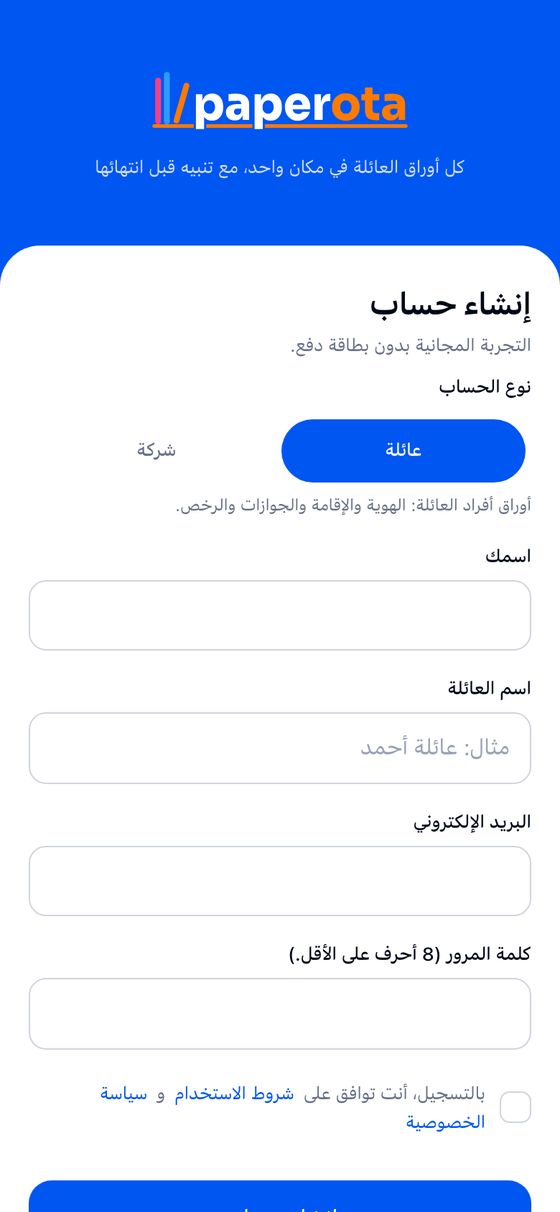
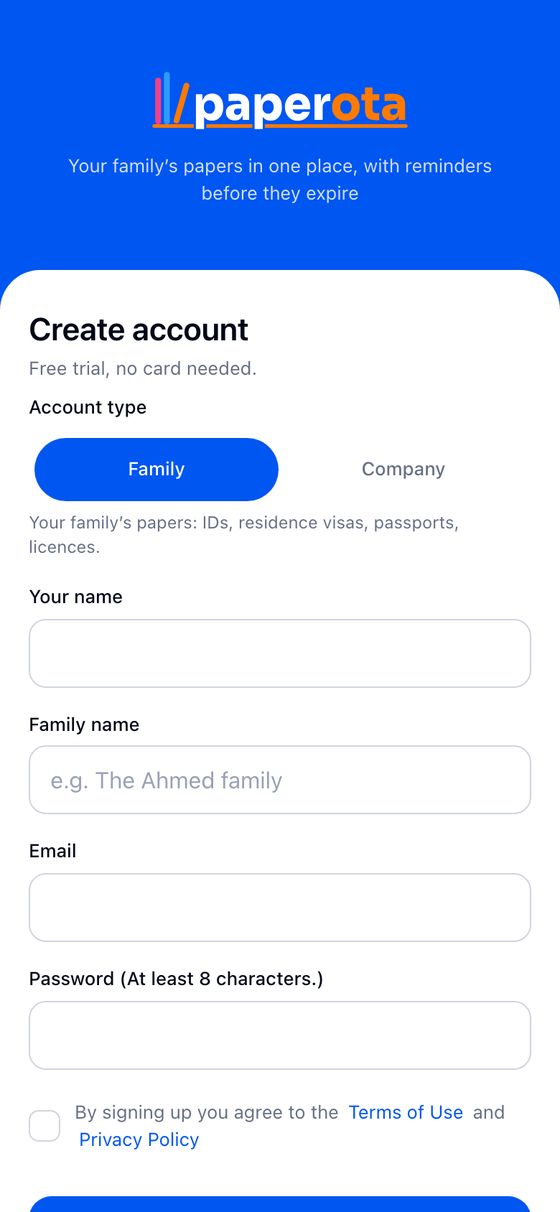
أنشئ حسابًاCreate an account
اختر «عائلة» أو «شركة»، واكتب اسمك وبريدك وكلمة مرور. ثم افتح رابط التأكيد في بريدك.Choose "Family" or "Company", then your name, email and a password. Then open the confirmation link in your email.
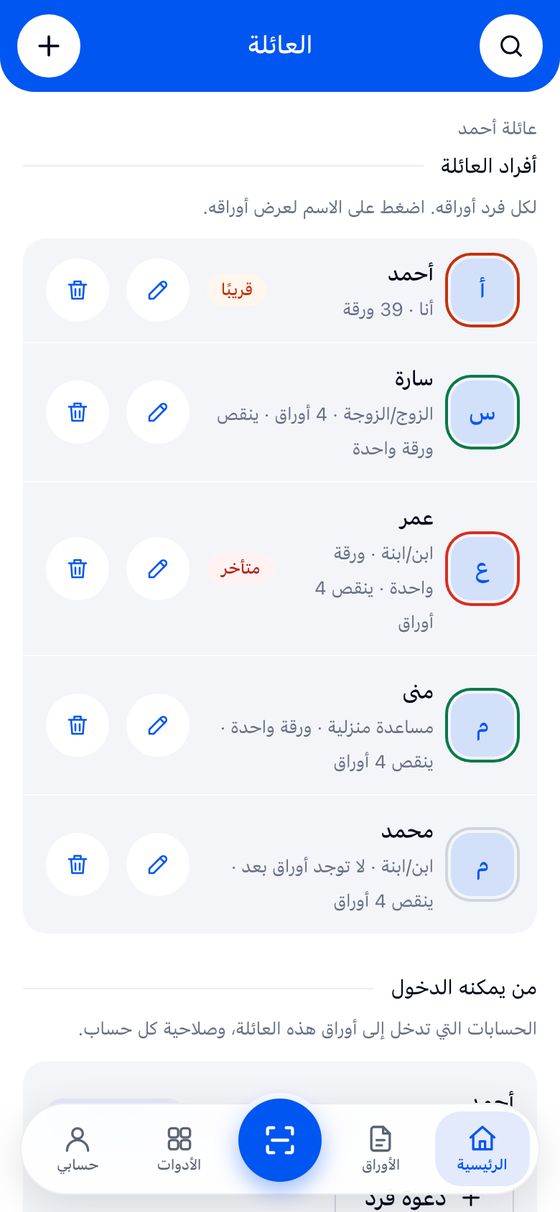
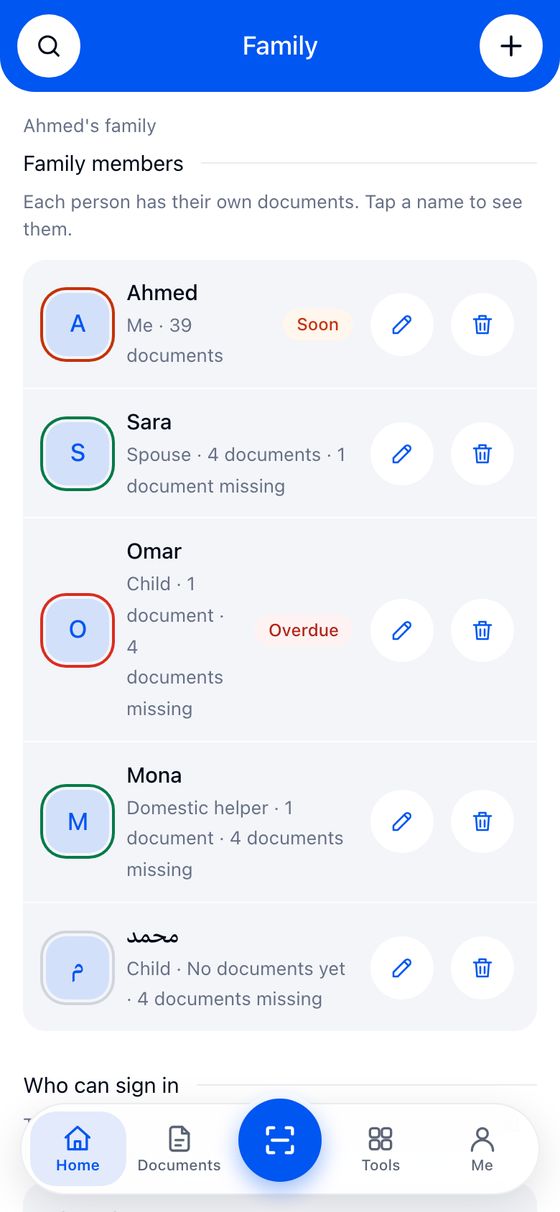
أضف الأشخاصAdd the people
أضف أفراد العائلة، أو الموظفين (واحدًا واحدًا أو من ملف Excel).Add your family members, or your employees (one by one or from an Excel file).
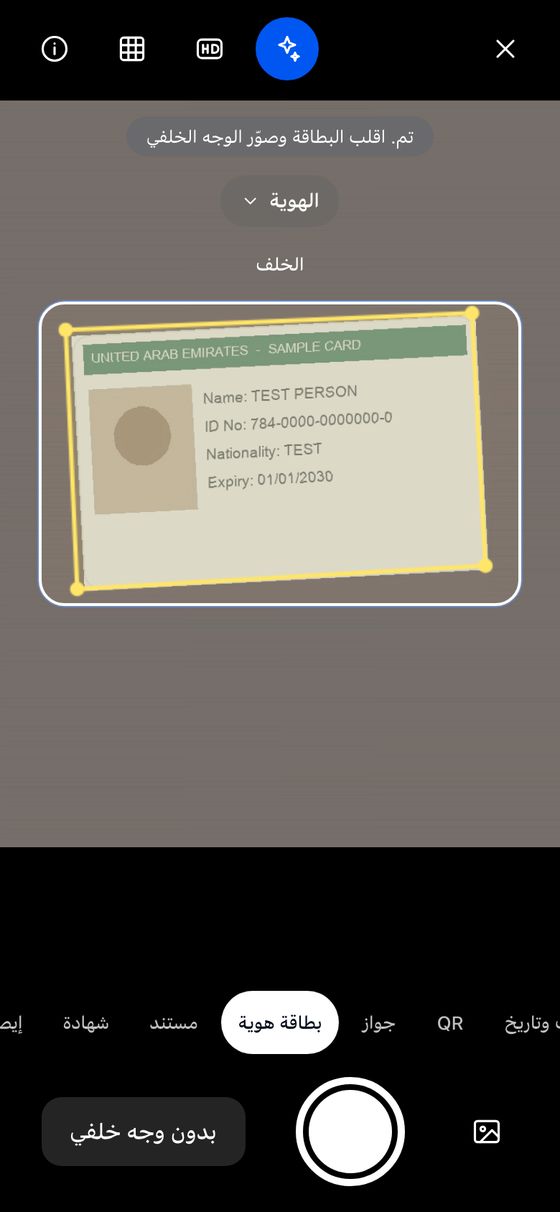
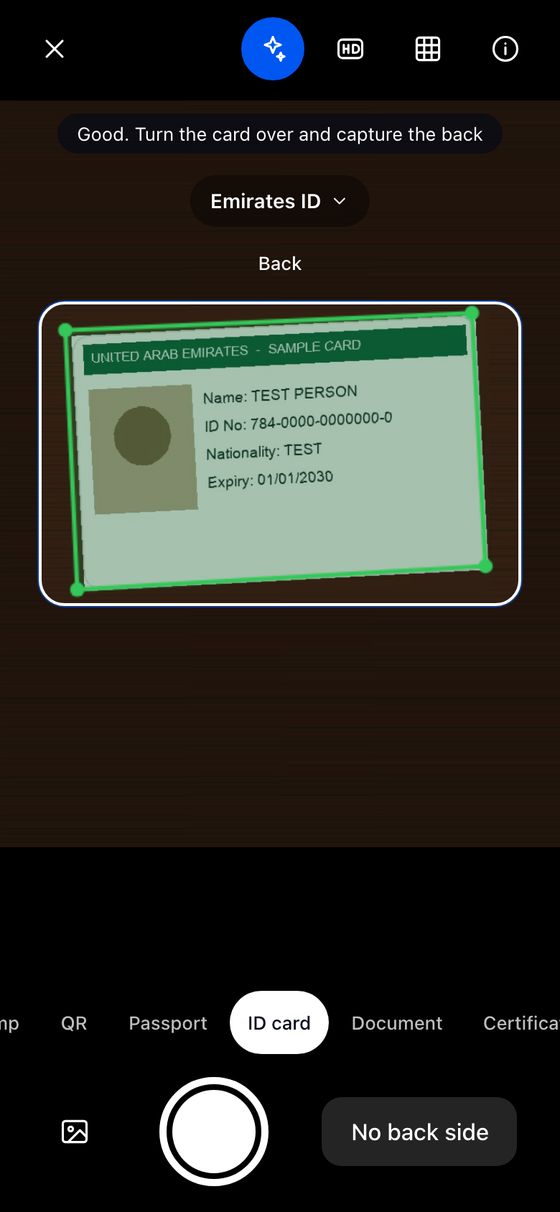
صوّر الأوراقScan the papers
اضغط زر الكاميرا، وضع الورقة أمامها. يقرأ أوراقي النوع والتاريخ، فراجعهما واحفظ.Press the camera button and hold the paper in front of it. Awraqi reads the kind and date; check them and save.
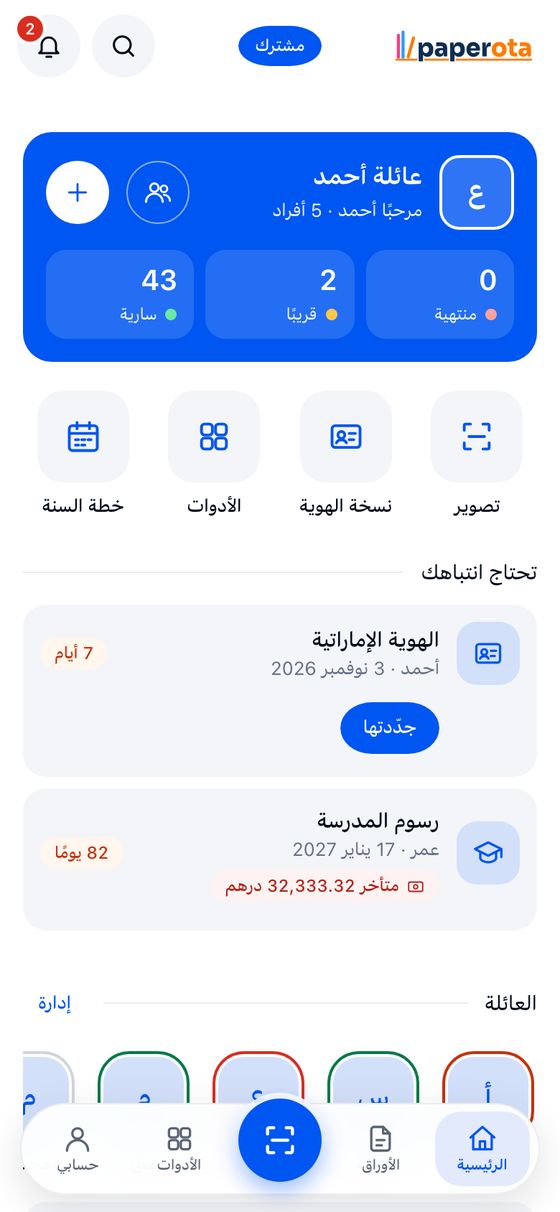
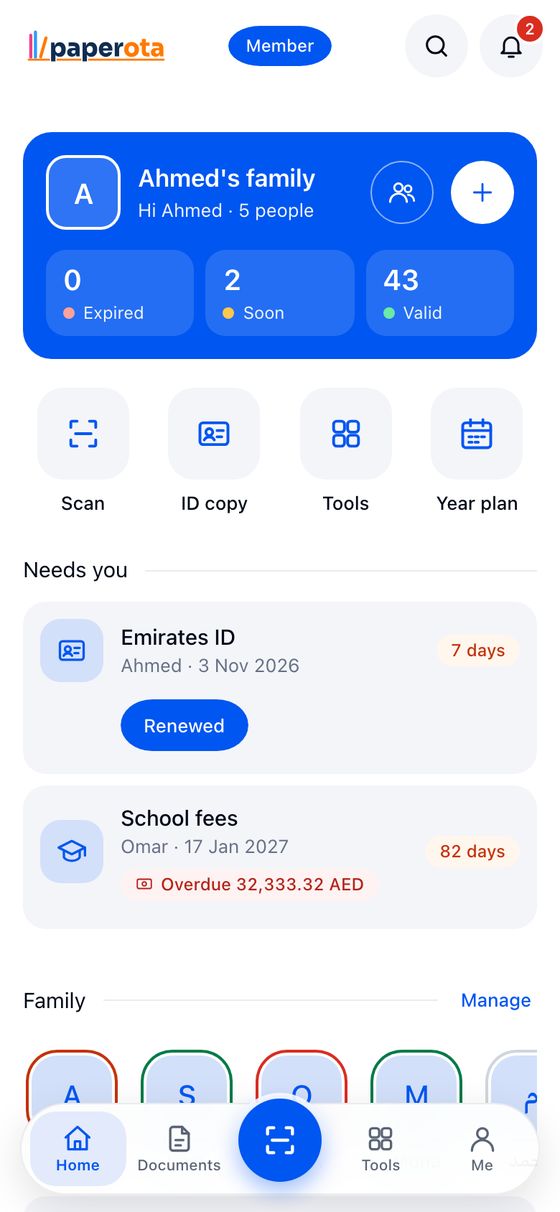
استلم التذكيرGet reminded
يصلك التذكير بالبريد قبل كل موعد، وتراه في الرئيسية. اشترك في التقويم ليظهر في هاتفك أيضًا.Reminders come by email before each date and show on the home screen. Subscribe to the calendar to see them on your phone too.


كل زر مشروحEvery button explained
اضغط رقمًا، واعرف ماذا يفعل.Tap a number, see what it does.
اختر شاشة من الشريط، ثم اضغط رقمًا على الصورة أو في القائمة. ويمكنك التنقل بالسهمين في لوحة المفاتيح.Pick a screen from the strip, then tap a number on the picture or in the list. You can also move with the arrow keys.


الرئيسيةHome
الشاشة 1 من 9Screen 1 of 9أول ما تراه: حالة أوراق العائلة، وما يحتاج انتباهك.The first screen: the state of the family's papers and what needs you.


الأوراقPapers
الشاشة 2 من 9Screen 2 of 9كل أوراق العائلة، مرتّبة لكل فرد.All the family's papers, sorted per person.


صفحة الورقةPaper page
الشاشة 3 من 9Screen 3 of 9كل ما يخص ورقة واحدة.Everything about one paper.


الكاميراCamera
الشاشة 4 من 9Screen 4 of 9على الهاتف. هنا في وضع «بطاقة هوية» بعد تصوير الوجه الأمامي.On the phone. Here in "ID card" mode, after the front was taken.


الأدواتTools
الشاشة 5 من 9Screen 5 of 9أكثر من 30 أداة، مرتّبة في مجموعات.More than 30 tools, in groups.


العائلةFamily
الشاشة 6 من 9Screen 6 of 9أفراد العائلة، ومن يمكنه الدخول.The family's people, and who can sign in.


حسابيMe
الشاشة 7 من 9Screen 7 of 9كل الإعدادات في مكان واحد.All settings in one place.


لوحة الشركةCompany dashboard
الشاشة 8 من 9Screen 8 of 9في حساب الشركة: الرئيسية هي لوحة الشركة.In a company account, the home screen is the company dashboard.


الموظفونEmployees
الشاشة 9 من 9Screen 9 of 9كل موظف بأوراقه.Every employee with their papers.
هل هناك شيء لا يعمل؟ في مركز المساعدة حلول المشكلات الشائعة، وفي الأسئلة الشائعة إجابات أخرى.Something not working? The Help center has fixes for common problems, and the FAQ answers more questions.